How It Works
What users actually do, and what happens when they do it.
Connecting Outlook to Lime CRM
Once per user, per device. There is nothing for an administrator to hand out — no account, no token, no password beyond the user's normal Lime CRM login.
- Open an email in Outlook and click Lime CRM → Save in CRM. The task pane opens on the right.
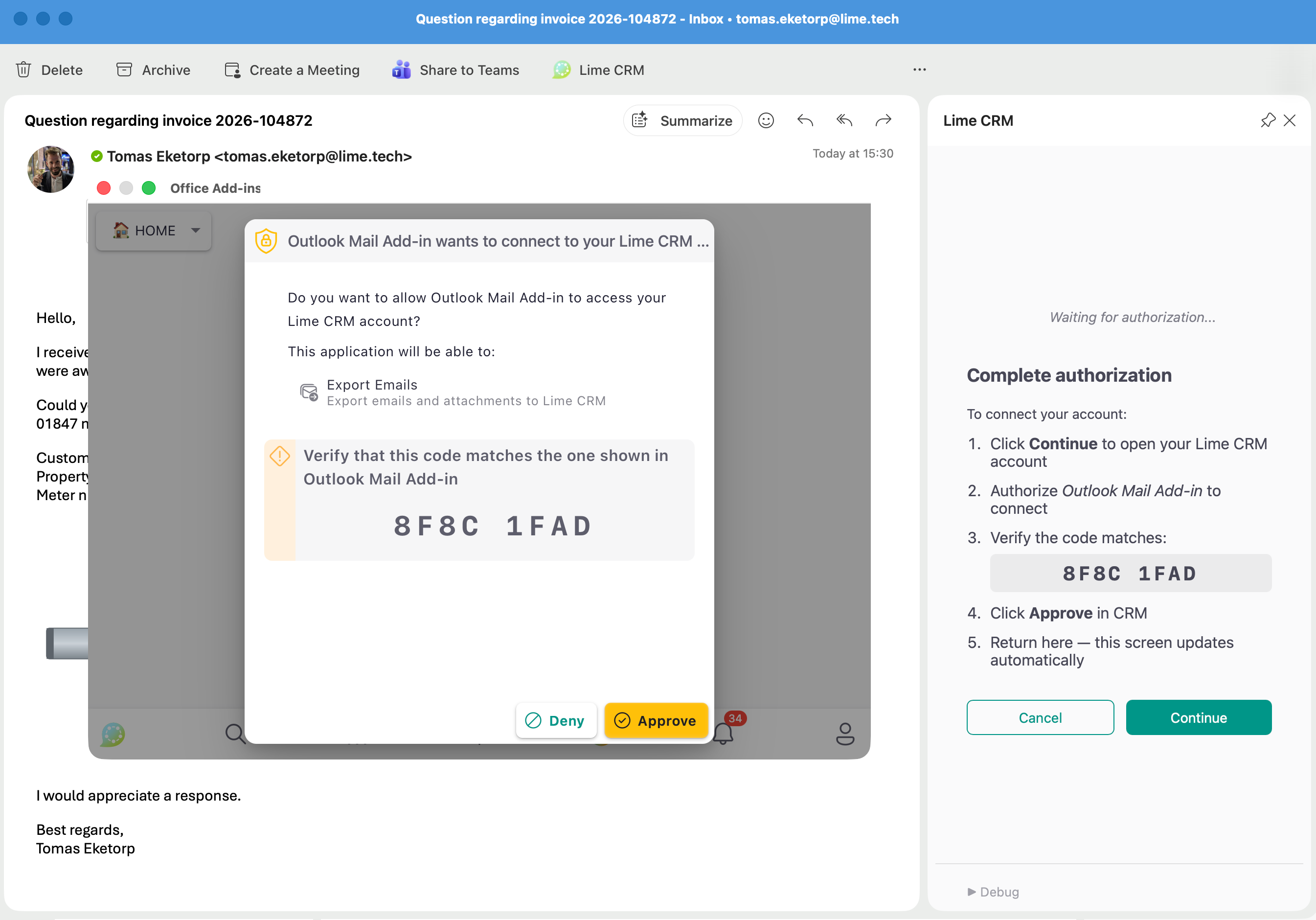
- Click Connect. A short code appears, along with a Continue button.
- Click Continue. A Lime CRM window opens. Sign in if you aren't already.
- Check that the code shown in CRM matches the one in Outlook, then click Approve.
- Go back to Outlook. The task pane now shows Connected as \<your name>.
It is the same pairing pattern as linking a TV app to an account: the code proves the Outlook add-in in front of you is the one being granted access.
From then on, the add-in stays connected. Users can disconnect at any time from the task pane footer.
Technical detail: Technical.
Saving an email
graph LR
    A["Open an email<br/>in Outlook"] --> B["Click<br/>Save in CRM"]
    B --> C["The Lime CRM form and<br/>attachment picker open"]
    C --> D["Fill in, pick<br/>attachments, and create"]
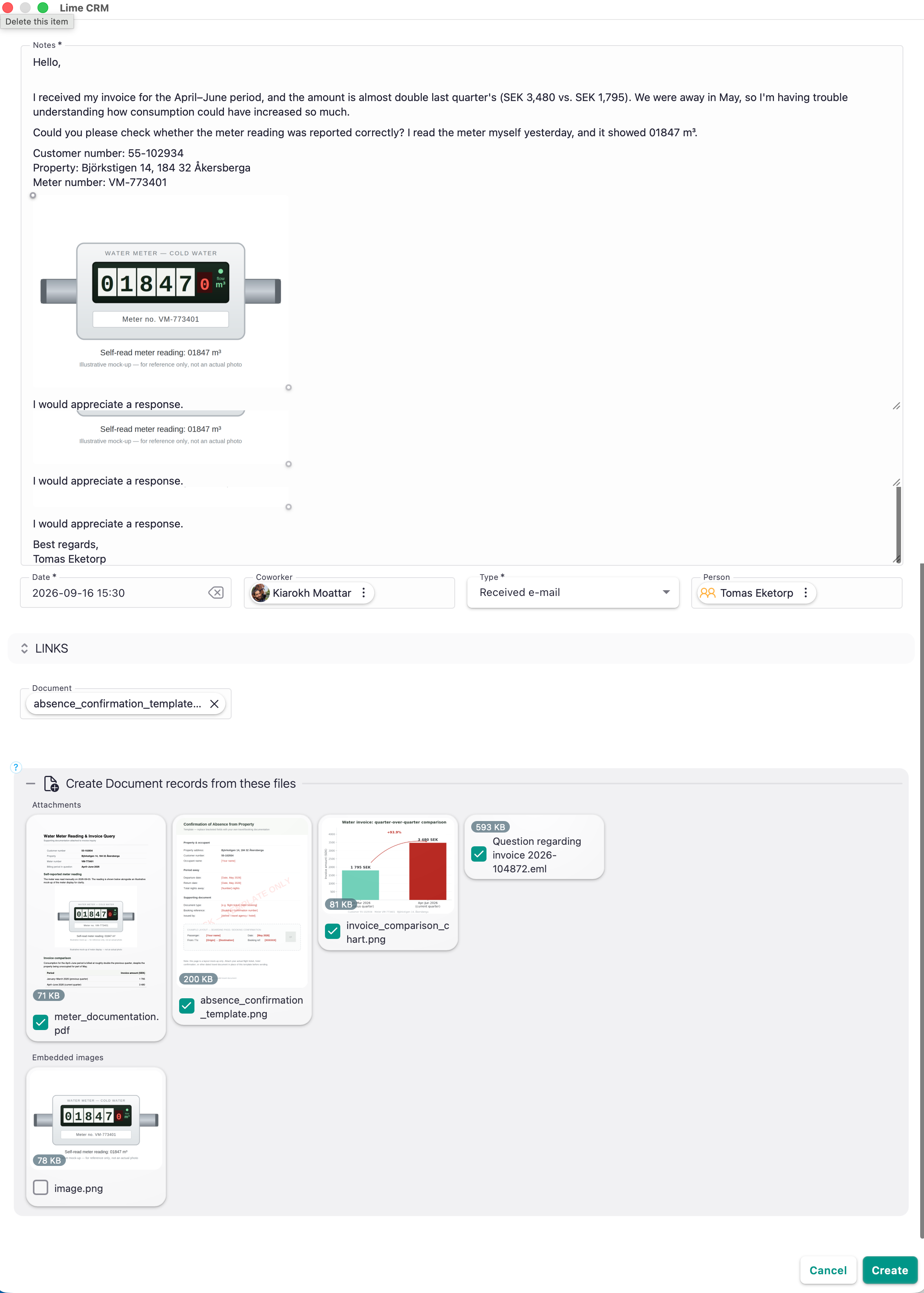
D --> E["Email marked<br/>as saved"]- Open any email — received or sent — and click Lime CRM → Save in CRM. A window opens with a Lime CRM form, pre-filled with the subject, body, sender, date and attachments.
- The attachment picker sits on the same screen as the form, not a separate step. Untick anything that shouldn't be saved.
- Fill in whatever else the record needs — the company, the ticket, the deal — and click Create.
Step 3 is the part that makes the add-in what it is: that form is the Lime CRM web client, not a simplified copy of it. Everything the customer has configured about that limetype applies — field order, validation, option queries, inline create, access rules, translations.
Pop-ups must be allowed
The form opens in a separate window. If pop-ups are blocked for the Outlook domain, clicking Save in CRM appears to do nothing. See FAQ & Troubleshooting.
What gets carried over
| From the email | Into Lime CRM |
|---|---|
| Subject | The mapped subject field |
| Body | The mapped body field, with formatting and inline images intact |
| Sender | Linked to a matching Person record, by email address |
| Received date | The mapped date field — the email's own timestamp, not today's |
| Attachments | Document records, linked to the saved email |
| The whole email | An optional .eml file, offered as an attachment |
| Raw headers | The mapped headers field, if one is configured |
Which fields these land in is set per solution — see Configuration.
Attachments
The task pane groups attachments into:
- Attachments — regular files, plus the generated
.emlcopy of the email. - Embedded images — images referenced from the email body, such as pasted screenshots.
Signature images — company logos, social media icons — are detected and left out entirely, so users aren't asked whether to save a LinkedIn icon on every email. This works for most email clients; see Known Limitations.
Everything the user keeps is uploaded and saved. Whether it becomes a Document record linked to the email depends on whether the chosen limetype has a relation to Document — see Technical.
A saved Document also picks up the email's own relations — company, person, deal — for every relation marked Auto attach on the Document card, exactly as it would if the Document were created from a card in the web client. Which relations those are is up to each solution's configuration. Where the coworker is ticked, it is set to the user doing the import rather than inherited from the email.
Not on mobile
On Outlook for iOS and Android, Microsoft does not give add-ins access to attachment content. Emails saved from a phone arrive without their attachments.
Already-saved detection
When an email is saved, the add-in writes a small marker onto the Outlook message itself.
Open that email again and the task pane shows "Already saved on \<date>" with a direct link to the record in Lime CRM, alongside a Save again option if the user wants a second copy.
Two consequences worth knowing:
- The marker lives on the Outlook message, not in Lime CRM. In a shared mailbox, everyone sees it — useful for "has anyone dealt with this?"
- If the same email arrives in two separate mailboxes, each user has their own independent status.
More detail: Technical.
Follow-up reminders
If the administrator has enabled it, the save form offers a tick-box to create a follow-up reminder in Lime CRM, linked to the saved email. Useful for "reply to this by Thursday" without switching to another tool.
Turned on or off in Configuration.
The reminder picks up relations the same way an attached Document does, from Auto attach on the Todo card.
Sent emails
Saving works from the Sent folder exactly as it does from the inbox. Administrators can apply different default values to sent and received emails — for example a different category — so they can be told apart in CRM. See Configuration.
Replies
Each message is saved individually, by deliberate action. There is no automatic capture of a whole thread — if five messages in a conversation belong in CRM, a user saves five messages. See Known Limitations.